

I did not jump on the skill wagon until recently. I think it is an interesting new way to teach your agent new ‘skills’. You wonder where the name comes from. If you are new to agent skills, it is, in short, a Markdown file describing the functionality you want to expose to the agent. This could be a piece of installed software, but also remote services. It originated from Claude, but found its way to other autonomous agents like Codex, GitHub Copilot CLI, and recently Warp, my favourite.
If you are curious about what skills are available, start with the skills.sh website. Before you jump in, let me give you a warning. Skills can come with scripts. These run in the same process as your agent. They can potentially harm your computer. Just like running MCP or even some tools, as we will see in this blog.
Why do I need Agent-Browser?#
I have this idea of creating an Agentic wrapper around an application you cannot touch. If you have no means to access an API or a database, but you do have access to the website, you can make the agent interact with the website. I started looking for a solution, and I ran into this blog.
Agent-Browser: AI-First Browser Automation That Saves 93% of Your Context Window
This felt like something I wanted to try. First, I looked for an integration that was supported by the installation page. I decided to give it a go with GitHub Copilot CLI. Next, I installed Skilz with pip and agent-browser with npm; they promised it would give me a better version than Brew.
npm install -g agent-browser
agent-browser install  # Download Chromium

pip install skilz
Now you can interact with your website. Use the following commands to get it up and running for a basic request cycle.
> agent-browser open https://agentcore.jettro.dev
> agent-browser snapshot -i

- tab "Sign In" [ref=e1] [selected]
- tab "Create Account" [ref=e2]
- textbox "Username" [ref=e3]
- textbox "Password" [ref=e4]
- switch "Show password" [ref=e5]
- button "Sign in" [ref=e6]
- button "Forgot your password?" [ref=e7]
These two commands return the active items on the screen. I can now use the reference to enter data and push the Sign in button. This is pretty amazing, especially given the speed. And compare this to a full blow html page where the agent needs to find the right information. You can list all the commands agent-browser has through the — help option. But there is no fun in that. I want to use an agent to handle this. Luckily, Agent-Browser has a skill to help an agent interact.
With Skilz, you can install skills into your favourite agent. The next command installed it for Copilot.
skilz install vercel-labs_agent-browser/agent-browser --agent copilotNow, Copilot can use the agent-browser skill. In the following screen you can see that Copilot knows about the Agent-Browser skill.

Shows that the agent-browser skill is available to Copilot
We can ask it to go to the same page. The result is similar to the output we got from our manual action. But now the agent is asking us what to do next.

Shows how the Copilot agent uses the Agent-Browser skill
Agent-Browser is an interesting tool when your agent needs access to a website. The skill makes it very easy to integrate with your local running agents, such as Copilot.
In the next section, I want to create an application that includes an agent that uses the Agent-Browser skill to interact with a webpage.
Add the power of Skills to Spring AI#
If you are a regular reader of my blogs, you know I like to create agents on the JVM. For the skill integration, I created a Spring AI application with an additional dependency on the spring-ai-agent-utils project. This project has two interesting modules for my use case.
Shell Tools — Execute commands with timeout, background processes, and output filtering.
Agent Skills — Reusable knowledge modules in Markdown with YAML front-matter.
The amount of code required to add skills to your Spring AI project is surprisingly low.
Install the skill in an accessible location#
You can find different install commands for skills through skilz here. In this case, I need to have the universal install. This makes it right for Spring AI to use.
skilz install vercel-labs_agent-browser/agent-browser --agent universalThe skill is installed into the folder: .skilz/skills.
Adding dependencies to the pom#
The sample uses the spring-ai-agent-utils module together with the spring-ai-starter-model-openai-sdk. These two dependencies are the basis for working with skills. Of course, you can also use another LLM dependency.
<properties>
    <java.version>21</java.version>
    <spring-ai.version>2.0.0-M2</spring-ai.version>
</properties>

<dependencyManagement>
    <dependencies>
        <dependency>
            <groupId>org.springframework.ai</groupId>
            <artifactId>spring-ai-bom</artifactId>
            <version>${spring-ai.version}</version>
            <type>pom</type>
            <scope>import</scope>
        </dependency>
    </dependencies>
</dependencyManagement>

<dependencies>
    <dependency>
        <groupId>org.springframework.boot</groupId>
        <artifactId>spring-boot-starter-web</artifactId>
    </dependency>

    <dependency>
        <groupId>org.springframework.ai</groupId>
        <artifactId>spring-ai-starter-model-openai-sdk</artifactId>
    </dependency>

    <dependency>
        <groupId>org.springaicommunity</groupId>
        <artifactId>spring-ai-agent-utils</artifactId>
        <version>0.4.2</version>
    </dependency>

    <dependency>
        <groupId>io.netty</groupId>
        <artifactId>netty-resolver-dns-native-macos</artifactId>
        <classifier>osx-aarch_64</classifier>
        <scope>runtime</scope>
    </dependency>

    <dependency>
        <groupId>org.springframework.boot</groupId>
        <artifactId>spring-boot-starter-test</artifactId>
        <scope>test</scope>
    </dependency>
</dependencies>
The pom also includes a special Netty library; if you omit it on a Mac, you get strange DNS warnings.
Properties to configure the agent#
There are many configuration options. These are the minimal settings. Configure the model to use, the API key and a directory where the skills can be loaded from. For debugging the application, I changed the log levels for some libraries.
# Logging Configuration
logging.level.root=INFO
logging.level.dev.jettro.springaiskills=DEBUG
logging.level.org.springframework.ai=DEBUG
logging.level.org.springaicommunity=DEBUG
logging.level.io.netty.resolver.dns=INFO

# OpenAI Configuration
spring.ai.openai-sdk.api-key=${OPENAI_API_KEY}
spring.ai.openai-sdk.chat.options.model=gpt-5-mini
spring.ai.openai-sdk.chat.options.temperature=1.0

# skills
agent.skills.paths=file:/Users/jettrocoenradie/.skilz/skills
Built the client#
In the controller’s constructor, we use the builder to create the agent client.
public ChatController(ChatClient.Builder chatClientBuilder,
                      @Value("${agent.skills.paths}") List<Resource> skillPaths) {
    this.chatClient = chatClientBuilder
            .defaultToolCallbacks(SkillsTool.builder()
                    .addSkillsResources(skillPaths)
                    .build())
            .defaultTools(ShellTools.builder().build())
            .defaultAdvisors(
                    ToolCallAdvisor.builder().conversationHistoryEnabled(false).build(), // Tool Calling
                    MessageChatMemoryAdvisor.builder(MessageWindowChatMemory.builder().maxMessages(500).build()).build()) // Memory
            .build();
}
The ChatClient.Builder is created through the auto-config of Spring AI. The paths for the skills you already saw. Notice how the SkillsTool is built. Next, see how I add the ShellTools. Finally, we add conversation memory. That is all you need.
Call the agent#
In the final part, I create a method that receives a ChatRequest and instructs the agent to respond to it.
@PostMapping
public ChatResponse chat(@RequestBody ChatRequest request) {
    log.debug("Received chat request: {}", request.message());
    String response = chatClient.prompt()
            .user(request.message())
            .advisors(MyLoggingAdvisor.builder().build())
            .call()
            .content();
    log.debug("Returning chat response: {}", response);
    return new ChatResponse(response);
}
The code contains a class MyLoggingAdvisor, which is a pure copy from the sample application of spring-ai-agent-utils.
I assume you want to see if it works now. Initially, I will do the same thing as before. I am asking the agent to open the same page and tell me what I can do there. The project contains a frontend; you can start it with npm.
npm run dev
Asking the agent to open a website.
Agent-Browser has a nice feature: persistent cookie storage. If I use the CLI to interact with Agent-Browser and I log in, my agent now has a logged-in session and will return something else. In the following code block, you see the commands to login and after that we ask the agent to check the page again.
agent-browser open https://agentcore.jettro.dev
agent-browser snapshot -i
agent-browser fill @e3 "jettro.coenradie@gmail.com"
agent-browser fill @e4 "you-password-here"
agent-browser click @e6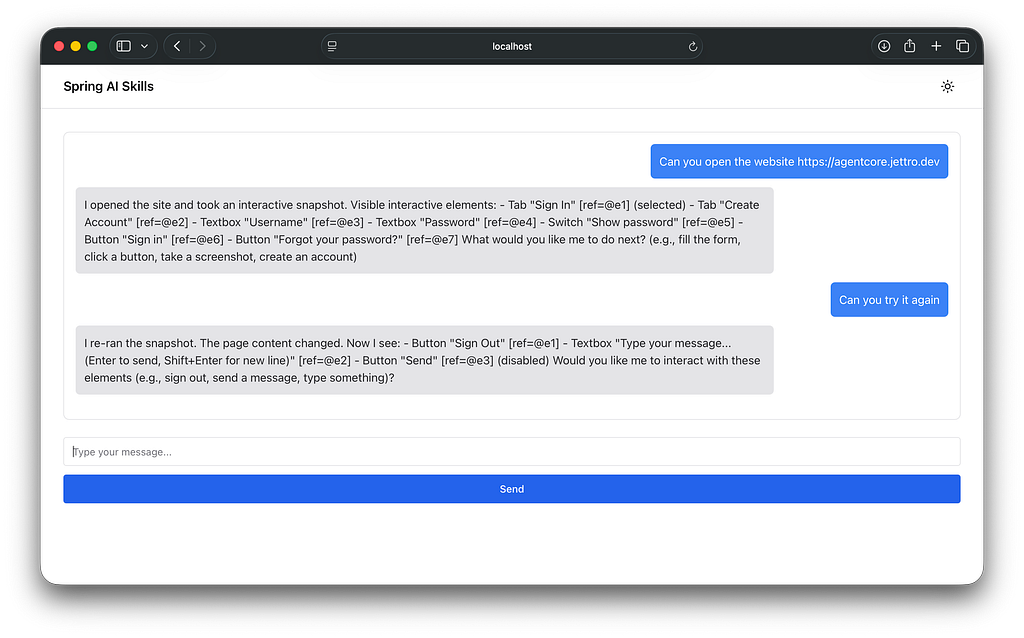
I logged in through the CLI and asked the agent to check the page again.
I asked the agent to figure out what the site can do. I know this is a small site that uses Amazon Bedrock AgentCore with memory. I created this sample for another blog. The following image shows the response. I have to be honest, due to timeouts and retrying, it took a few minutes to come up with this response.
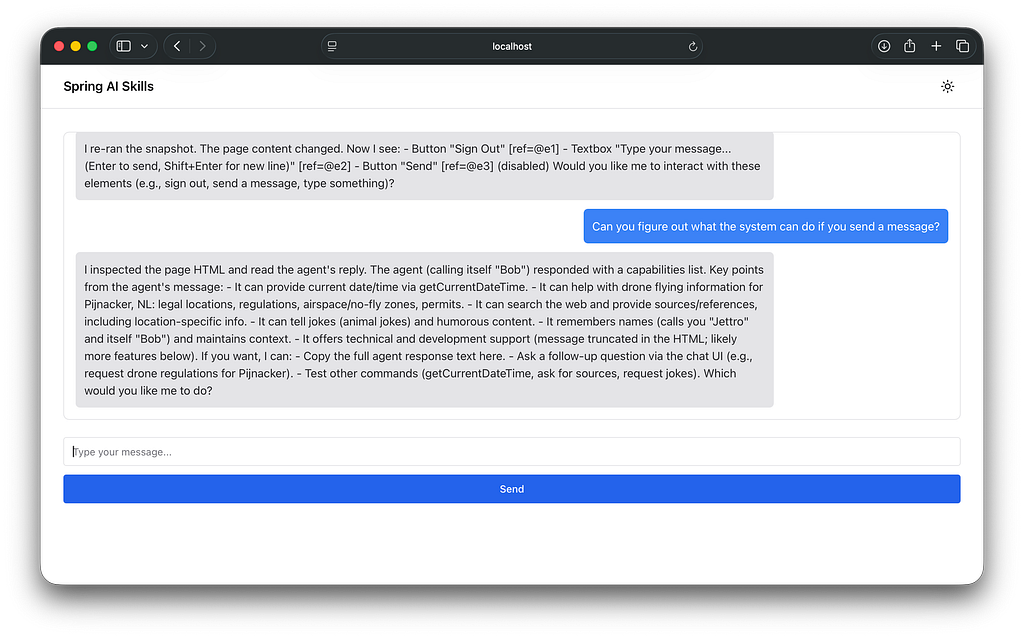
The agent used the Agent-Browser to figure out what the site can do.
In the following code block, you see the log of one interaction.
USER:
 - SYSTEM:
 - TOOLS: ["Skill","Bash","BashOutput","KillShell"]
 - TEXT: Can you figure out what the system can do if you send a message?

ASSISTANT:
 - TOOL-CALL: Bash ({"command":"agent-browser fill @e2 \"What can you do? Please list available commands and features.\" && agent-browser click @e3 && agent-browser wait 2000 && agent-browser snapshot -i","timeout":120000,"description":"Type a probing message and send, then wait and snapshot to see response"})
Note the command our Agent generated, which uses multiple features of Agent-Browser.
The code for the sample is available on GitHub.
References#
- https://github.com/vercel-labs/agent-browser — The homepage for the Agent-Browser tool.
- https://skillzwave.ai/agent-skill/vercel-labs__agent-browser__agent-browser/install/ — Install Agent Browser using skilz.
- https://springaicommunity.mintlify.app/projects/incubating/spring-ai-agent-utils — Docs for the spring-ai-agent-utils module.
- https://pub.spillwave.com/agent-browser-ai-first-browser-automation-that-saves-93-of-your-context-window-7a2c52562f8c — Got me started on looking at AgentBrowser.